All product work

Case study · Workspace Global
One chat box. A whole creative team behind it.

Workspace Global gives a business a creative team on one monthly plan: design, web, video and marketing. I designed all of it, the client app on iOS, Android and web, and the internal tools that turn a client's message into finished work.
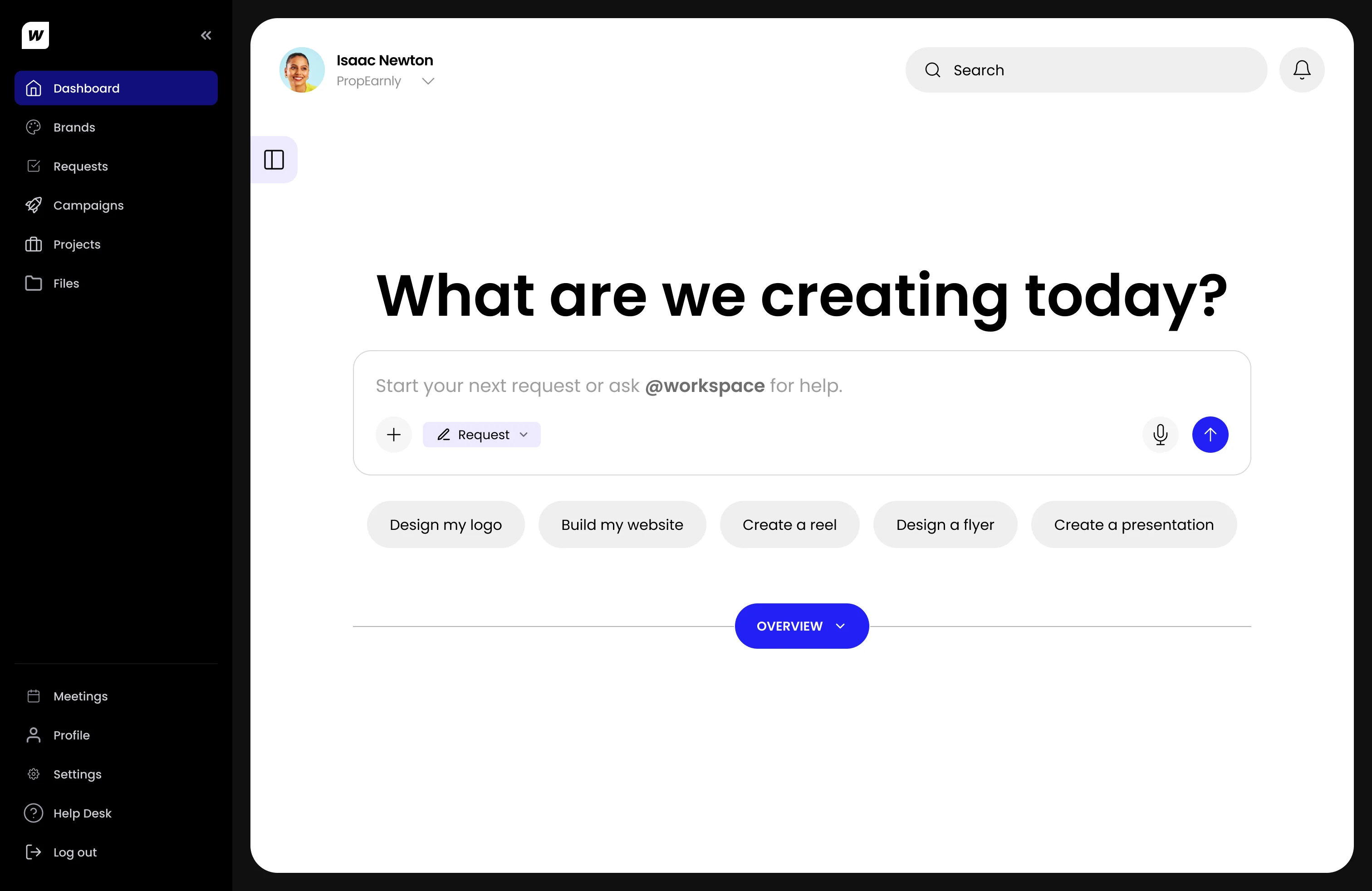
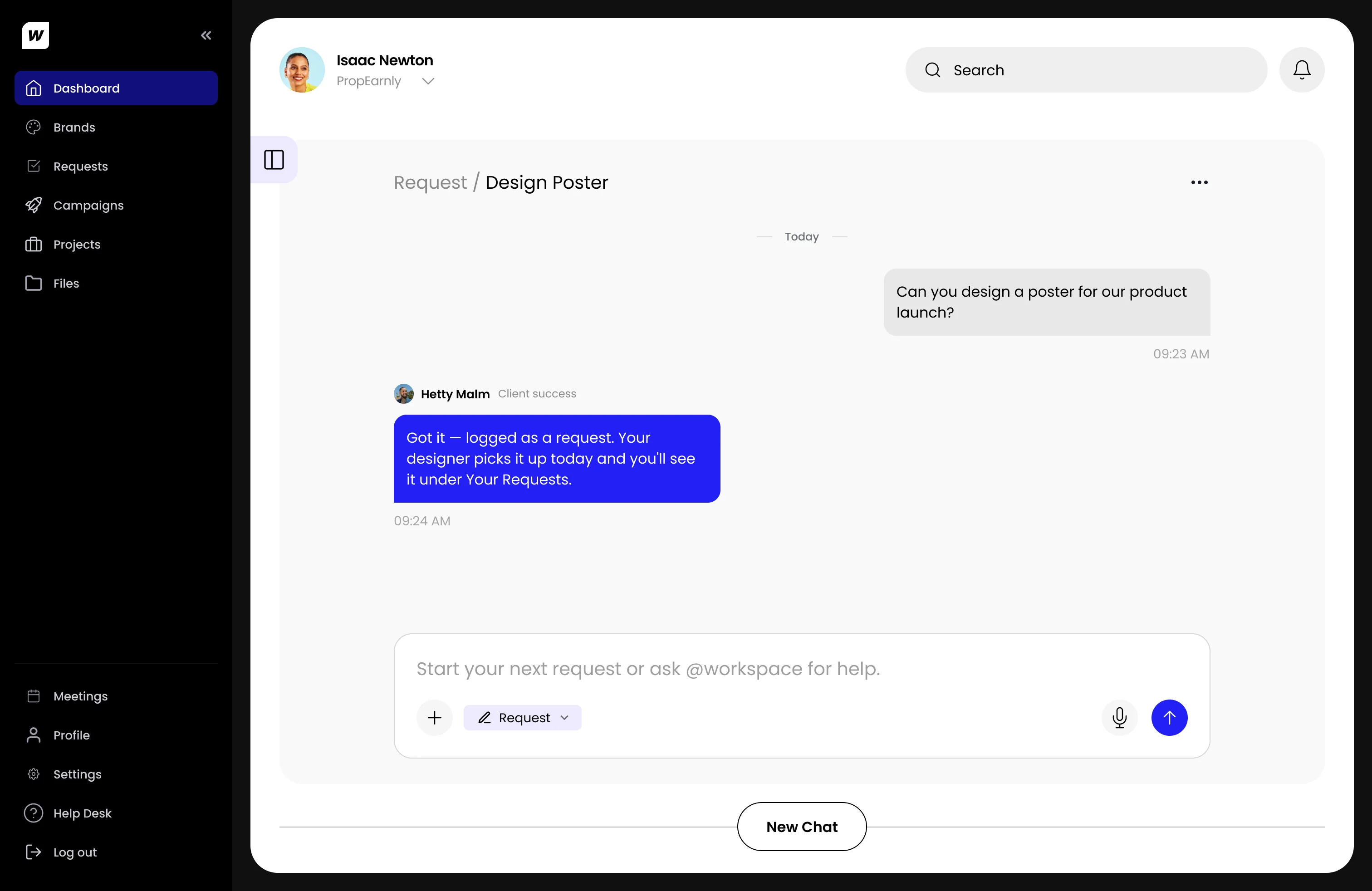
Workspace dashboard on desktop: the composer asks “What are we creating today?” with quick picks such as Design my logo and Build my website.The same screen after a client asks for a launch poster: client success replies that it is logged as a request.
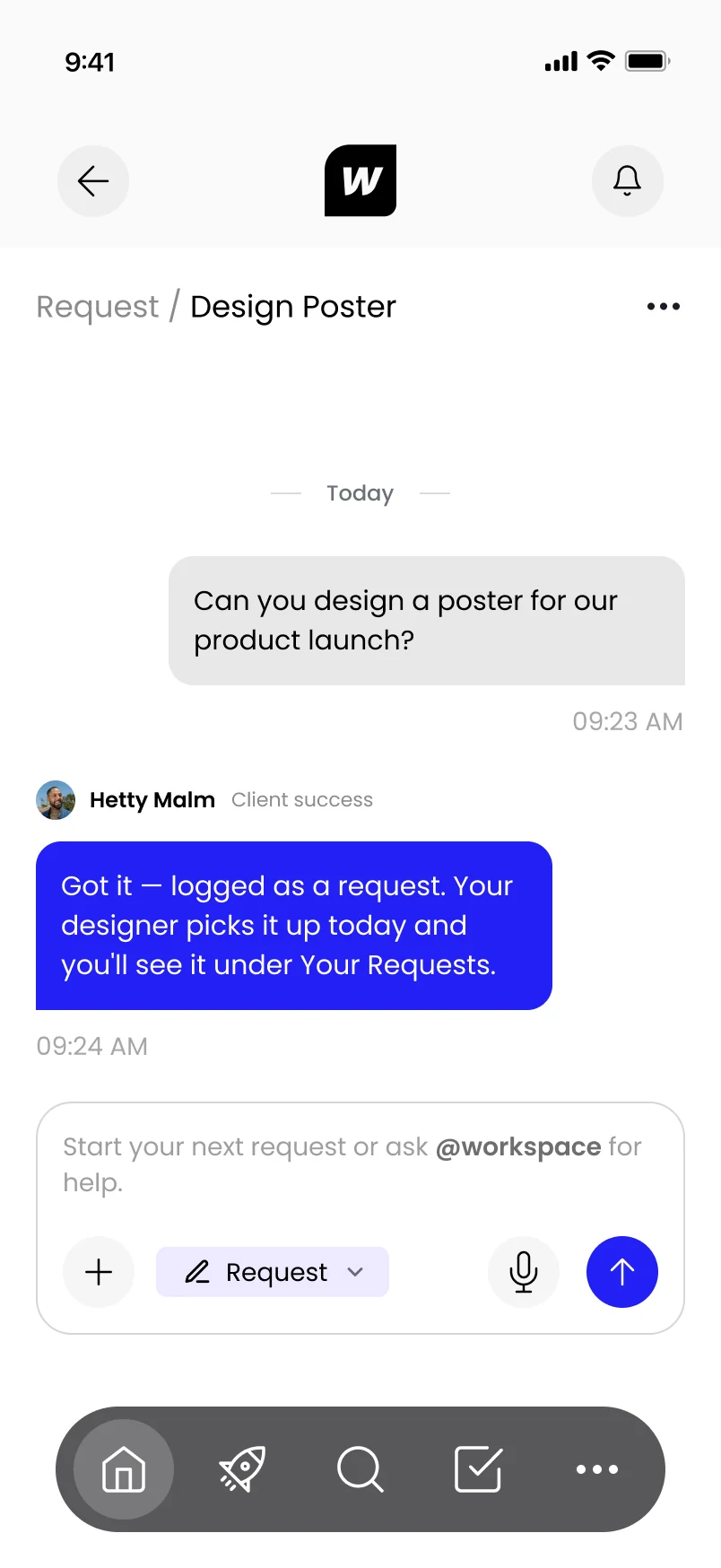
A request conversation on a phone.
Role
Product designer and web designer
Platforms
iOS, Android and web
Timeline
Jul 2026 to now
Worked with
A product manager, a second designer and the developers

The problem

A client writes one sentence. Three teams turn it into finished work.

On Workspace a client never fills in a brief. They type what they need, the way they would text a friend. Behind that message, operations checks and routes it, an art director turns it into a proper brief, and a designer or writer from the talent pool takes it on. Then it comes back to the client for approval.

My job was to make that whole trip feel like one conversation to the client, and like a clear checklist to everyone behind it.

  1. 01Client

    Types what they need in one box, on a phone or the web.

  2. 02Operations

    Sees every request in one queue and decides where each one goes.

  3. 03Art director

    Turns the summary from operations into a Golden Brief.

  4. 04Talent

    Receives a clear brief, picked by name or offered to the pool.

01Client

Types what they need in one box, on a phone or the web.

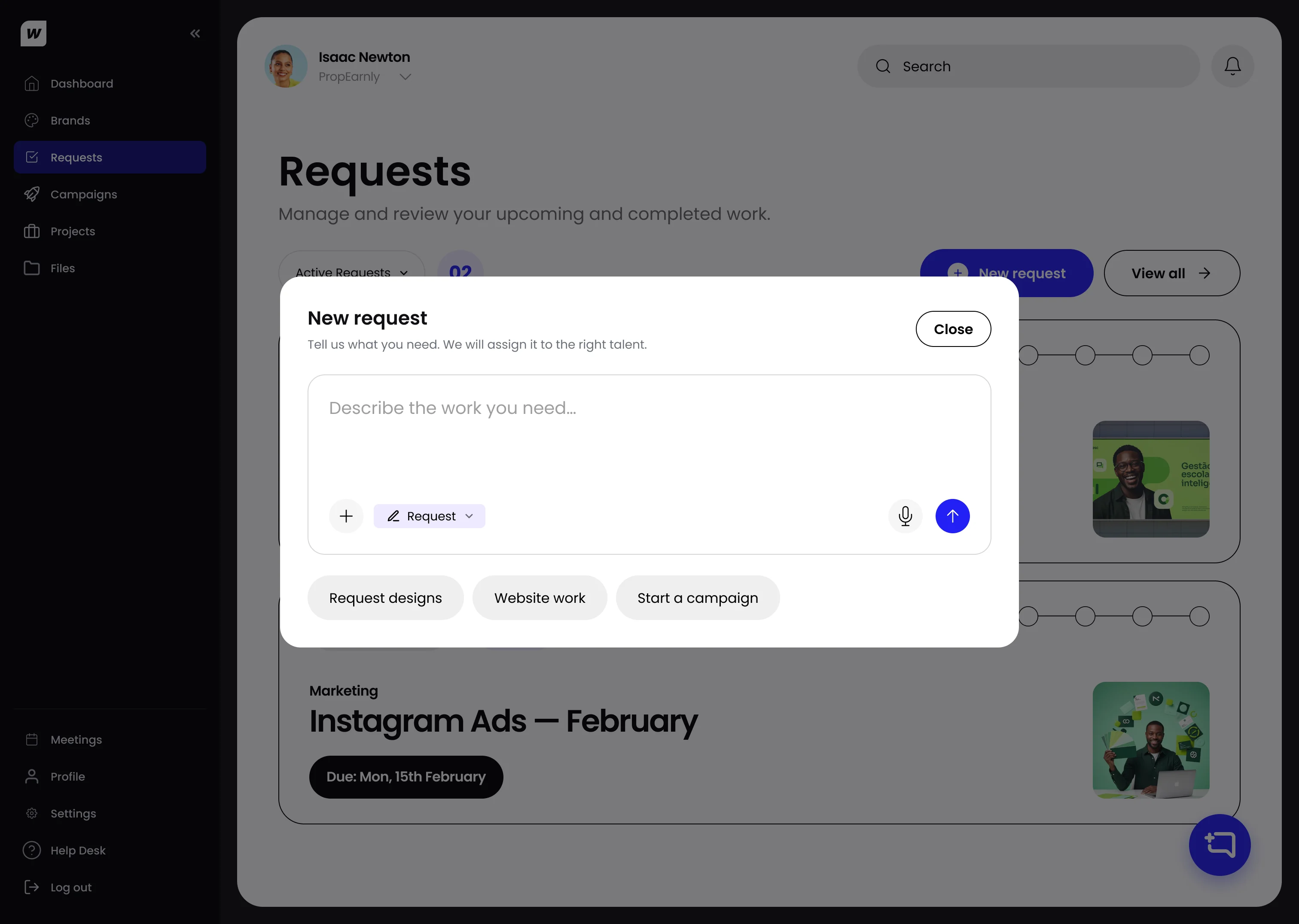
01New requestClient view
The client's Requests page with the New request box open: Describe the work you need, with quick picks for designs, website work and campaigns.

What this screen showsThe client describes the work in their own words. Quick picks cover the most common asks.

02Operations

Sees every request in one queue and decides where each one goes.

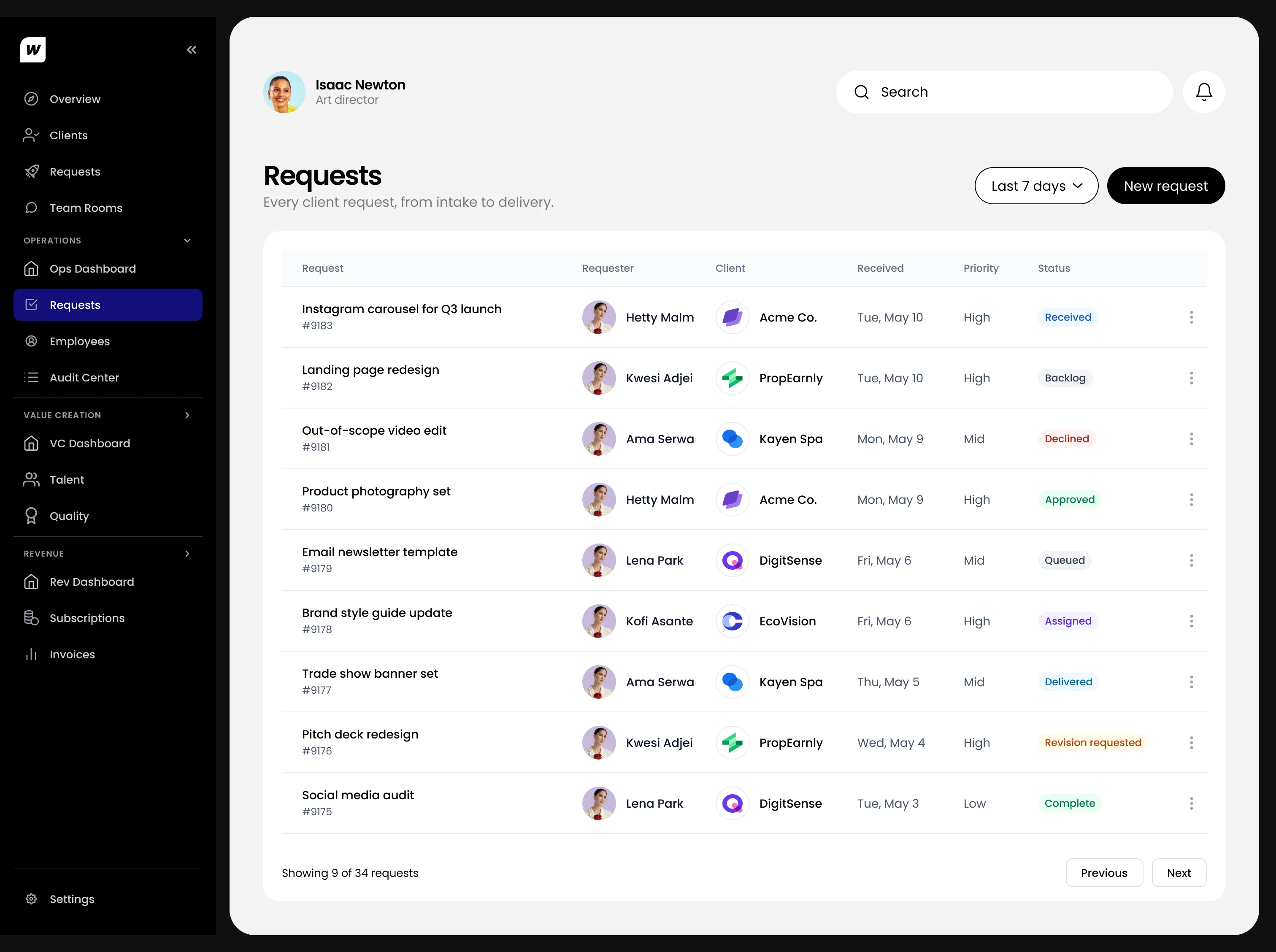
02Requests queueOperations view
The operations request queue: nine requests from clients such as Acme Co., PropEarnly and Kayen Spa, each with priority and status.

What this screen showsEvery client request in one list, with requester, client, priority and a status from Received to Complete.

03Art director

Turns the summary from operations into a Golden Brief.

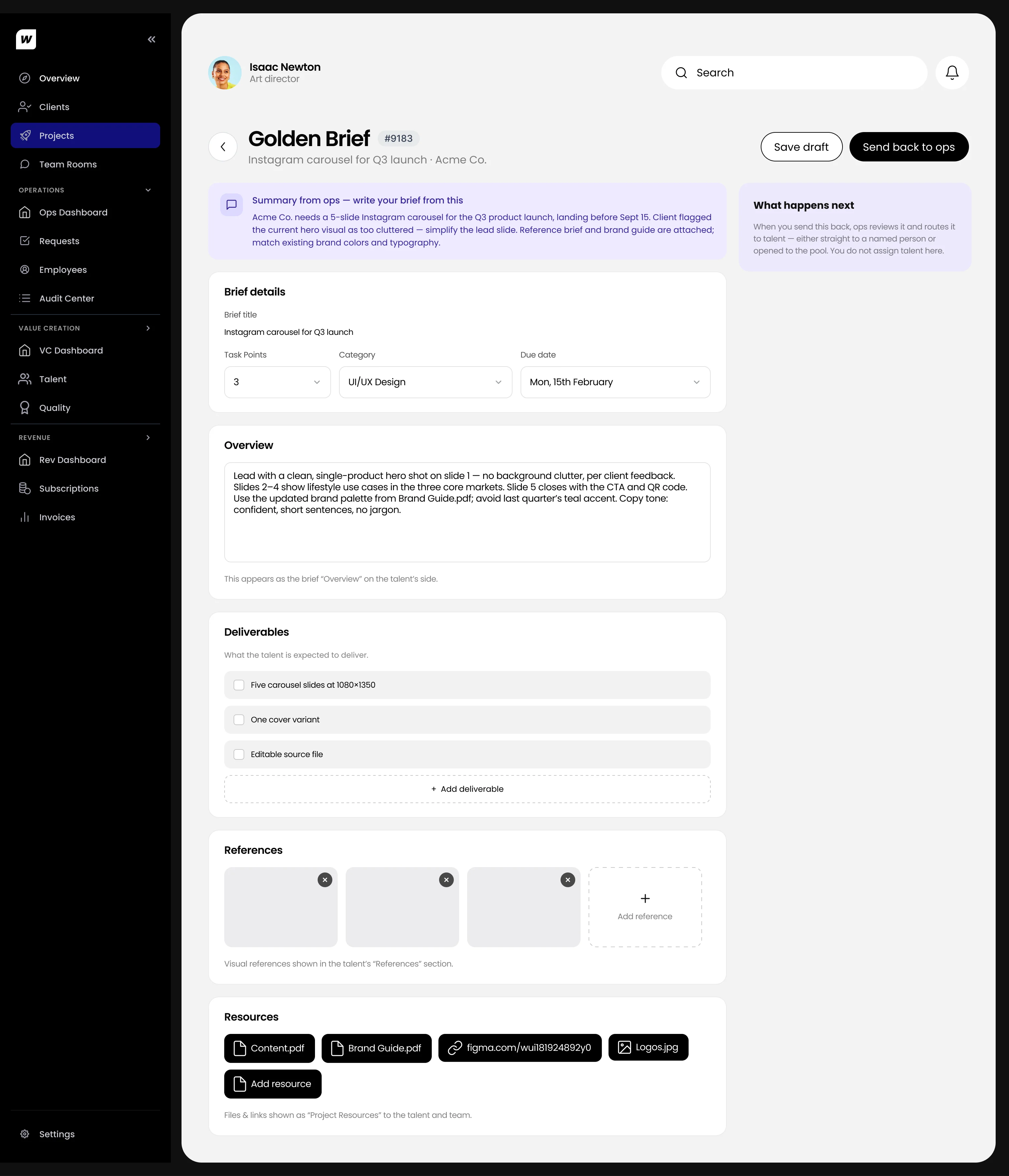
03Write the Golden BriefArt director view
The Golden Brief form for an Instagram carousel: summary from operations, brief details, overview, deliverables, references and resources.

What this screen showsThe brief is written from the summary operations left: title, task points, due date, deliverables, references and files.

04Talent

Receives a clear brief, picked by name or offered to the pool.

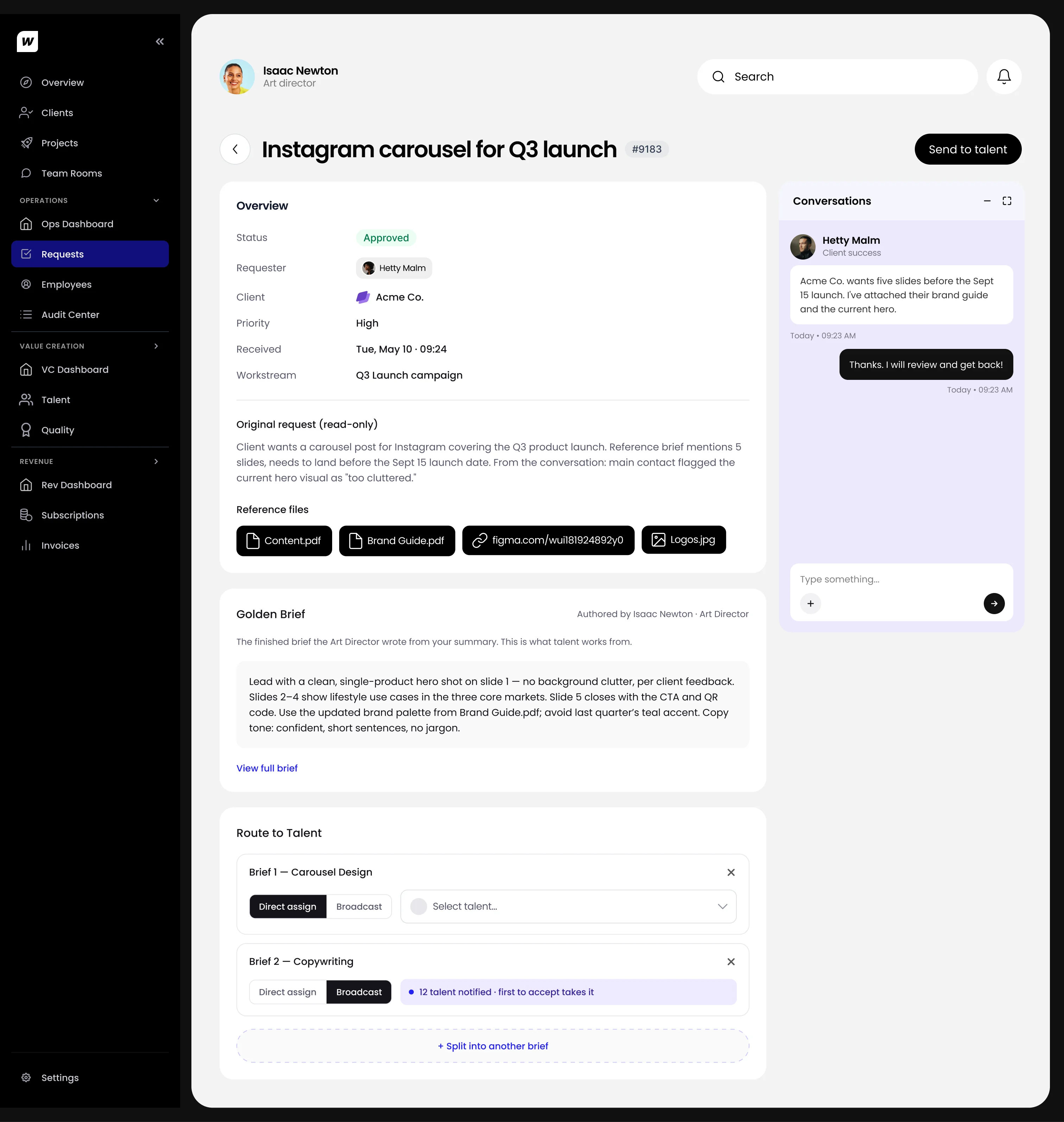
04Route to talentOperations view
The request with its Golden Brief and Route to Talent: one brief directly assigned, one broadcast to 12 talent.

What this screen showsEach part of the brief goes out on its own: the carousel to a named designer, the copy to the pool, where the first to accept takes it.

The client side

One box to ask. One place to follow.

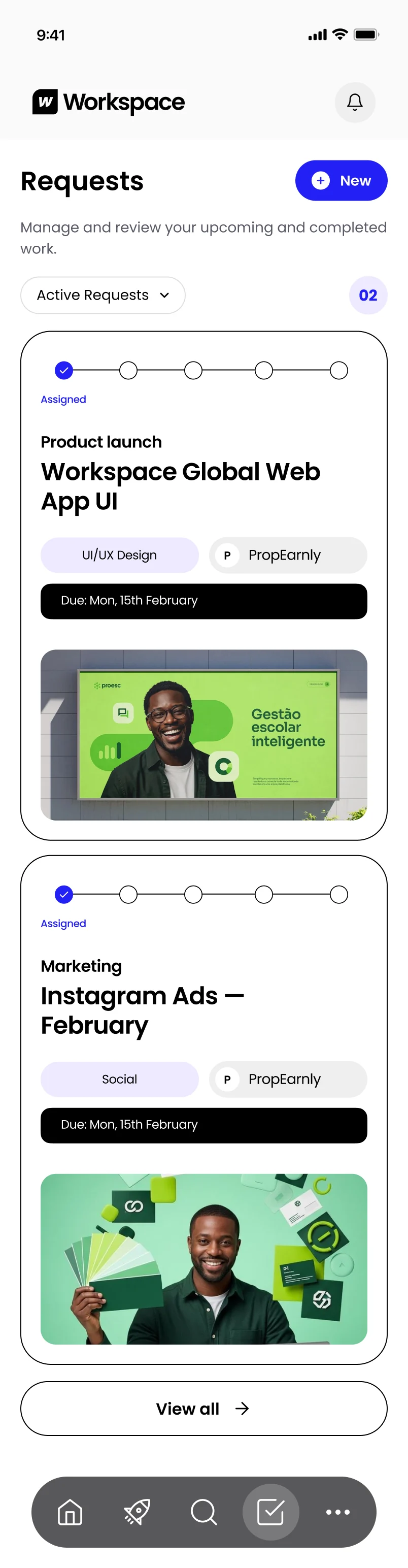
Clients are buying creative work, not learning a tool. So every request reads the same way on the web and on a phone: a five-step tracker on the card, each file approved or sent back on its own, and the revision rounds left in plain sight.

  1. AssignedFollow

    Every request card carries the same five-step tracker, so a client can tell where their work stands at a glance.

    The same requests on a phone, with the tracker at the top of each card.
  2. RevisingReview

    Each submitted file can be approved or sent back on its own, and the rounds left sit next to the deadline.

    The request in review on a phone: the same files with Approve and Revise, and the conversation one tap away.
  3. CompletedDone

    When every file is approved the tracker completes, and the final files stay ready to download.

    The completed request on a phone, every file approved with Download.
ApproveDecide

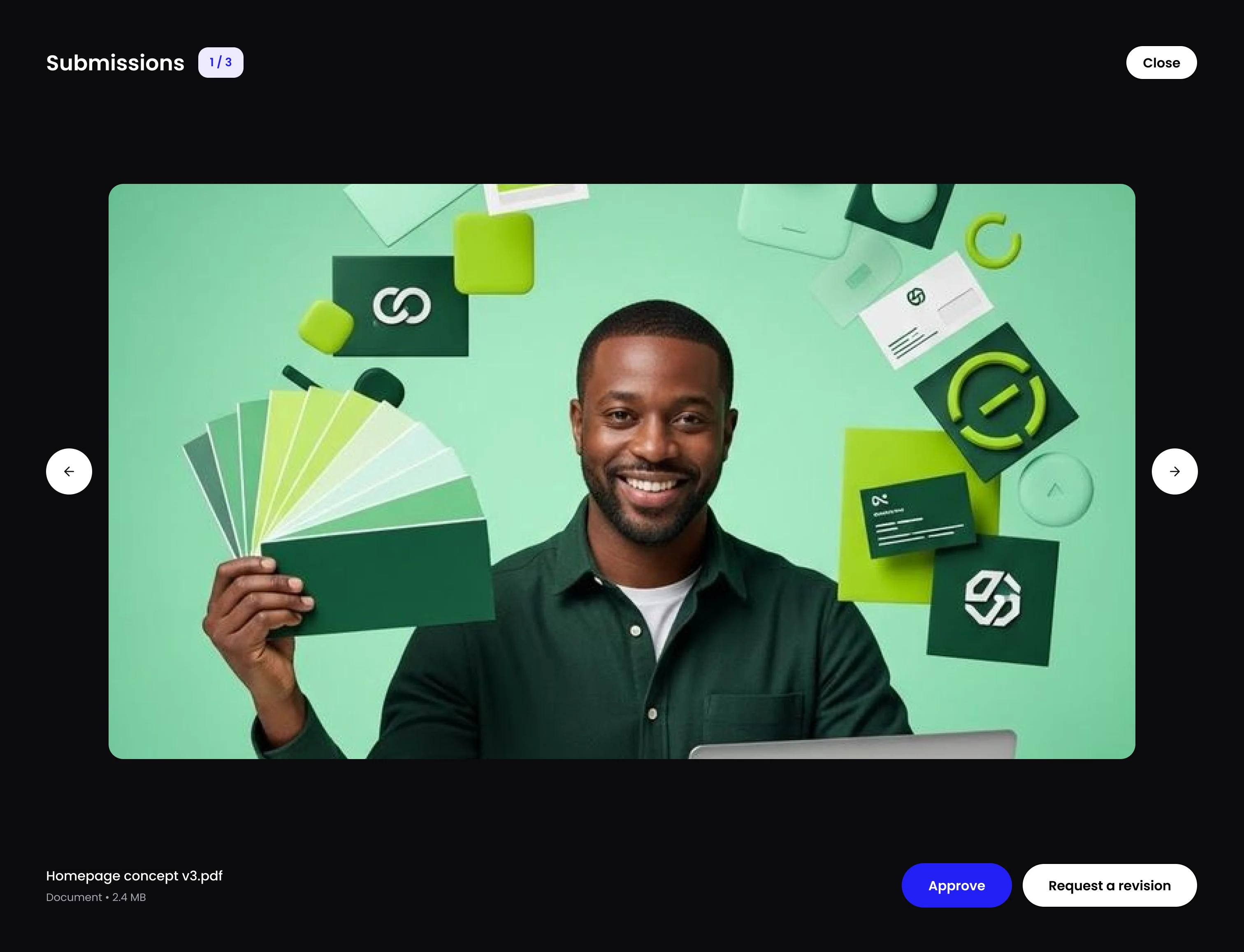
A file opens full screen with two clear choices: approve it, or request a revision.

File previewClient view, desktop
A submitted file open full screen, 1 of 3, with Approve and Request a revision.

Behind the request

Three checks the client never sees.

Fast only helps if what arrives is right. So the internal tools put a person at every handover: one before the work is assigned, one before it leaves the team, and one that decides exactly what the client receives.

  1. 01Operations

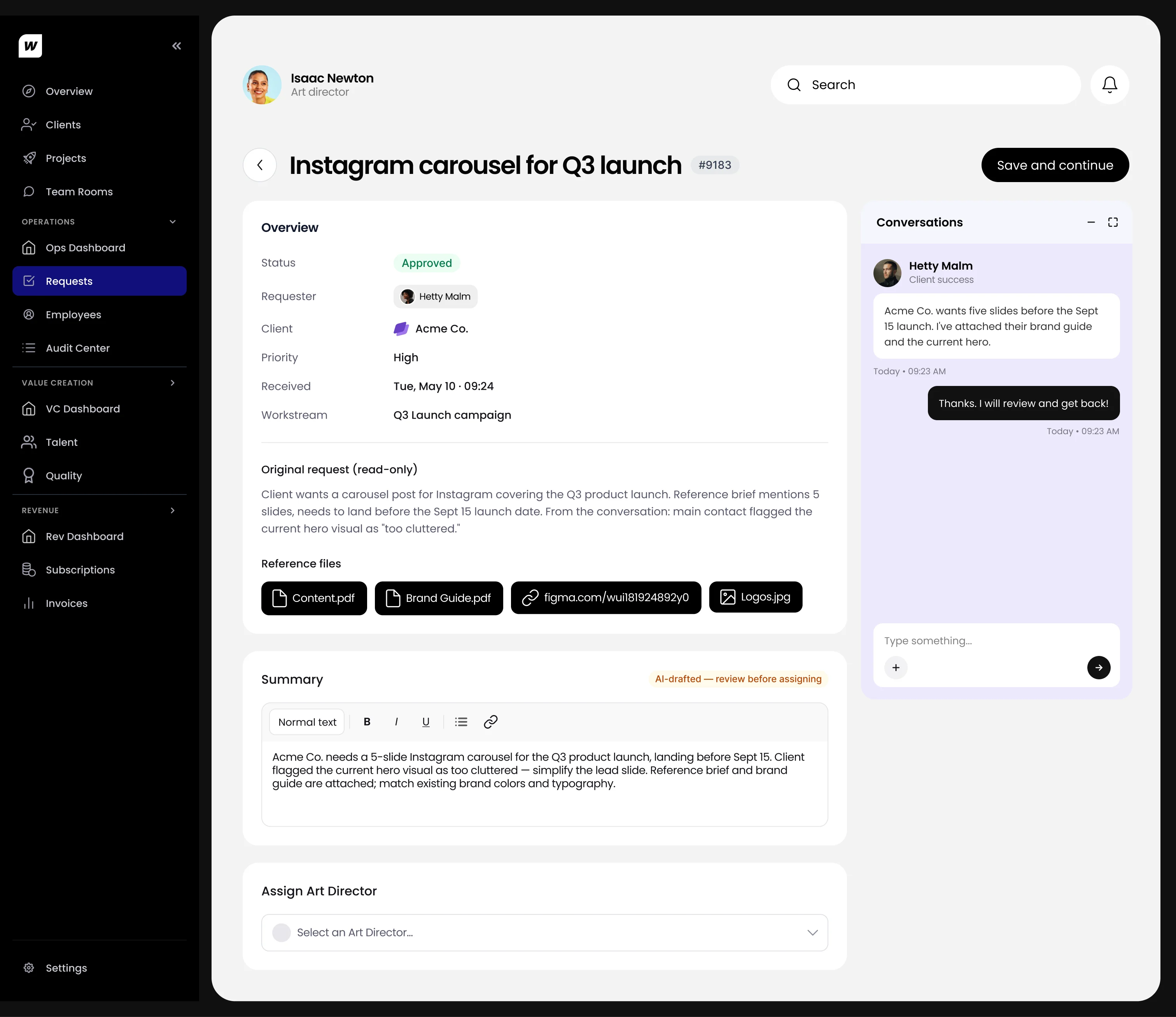
    Read the summary first

    The summary is drafted by AI and flagged until someone reads it. Only then can an art director be picked.

    The request page for an Instagram carousel: overview, the original request, an AI-drafted summary flagged for review, and Assign Art Director.
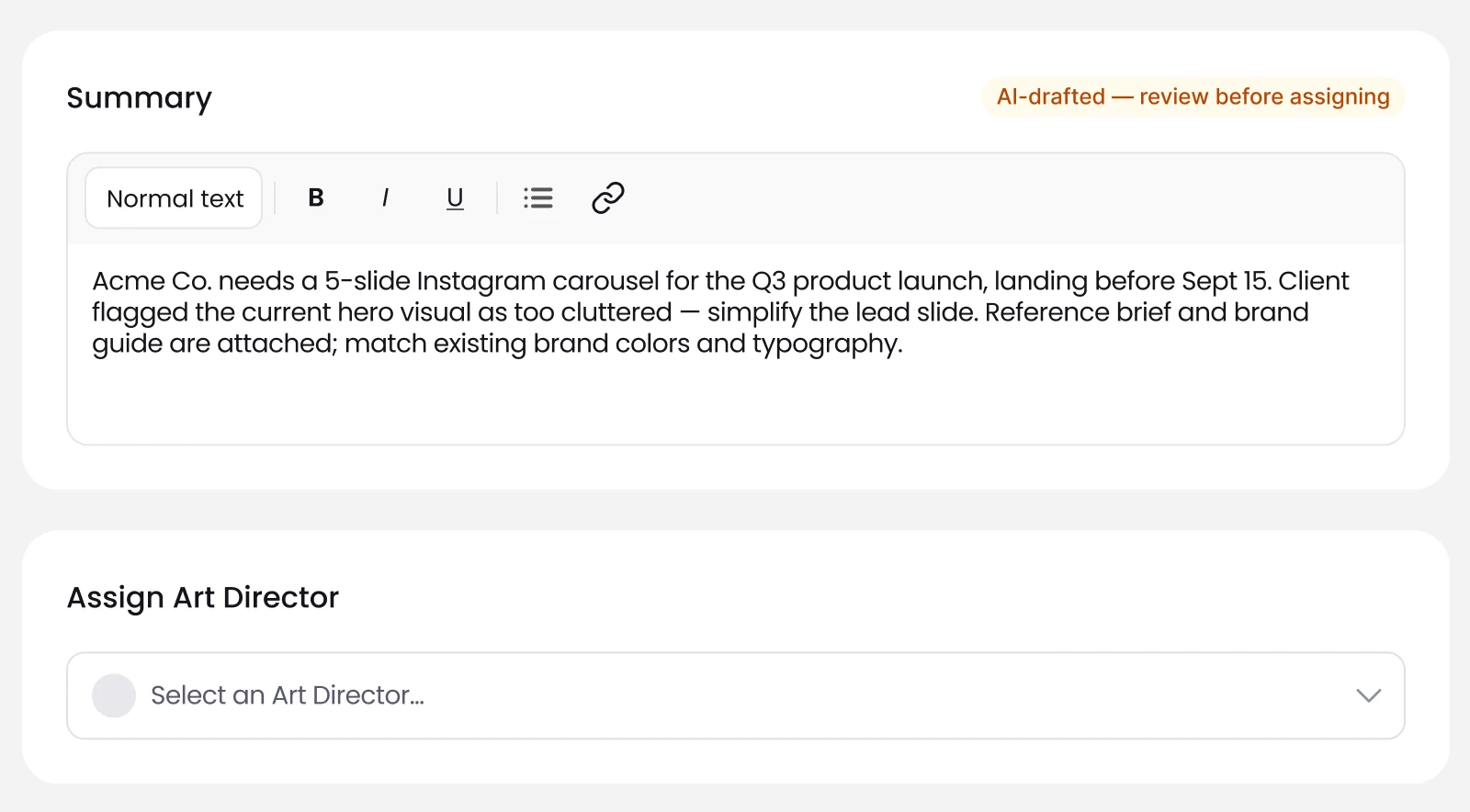
    Assign an art director
    Close-up: the summary marked AI-drafted, review before assigning, above the Select an Art Director field.
  2. 02Art director

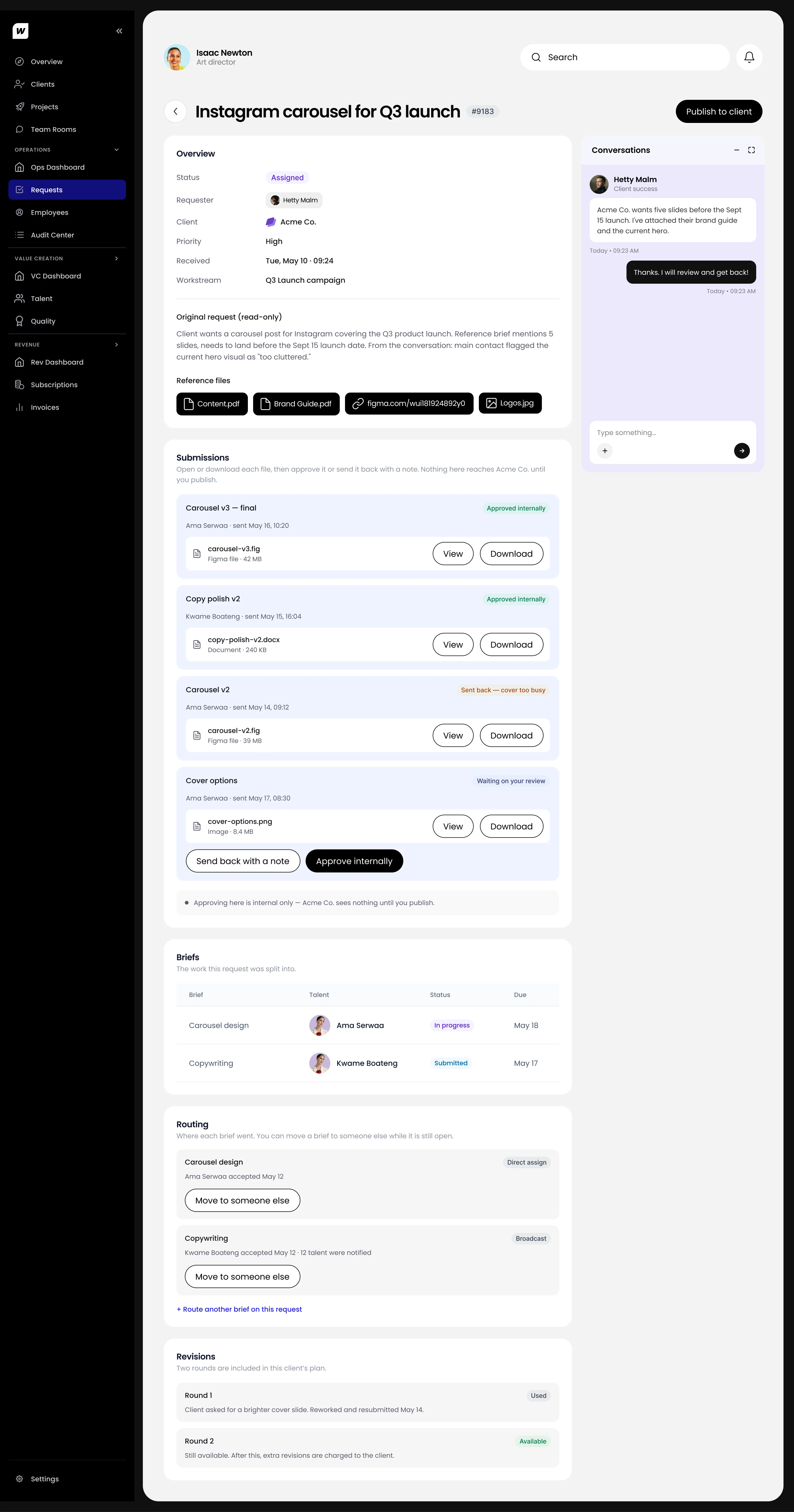
    Approve inside the team

    Every file from talent is approved or sent back with a note. Nothing here reaches the client yet.

    The request in review: submissions from two talent, the briefs they work from, routing, and the revision rounds in the client's plan.
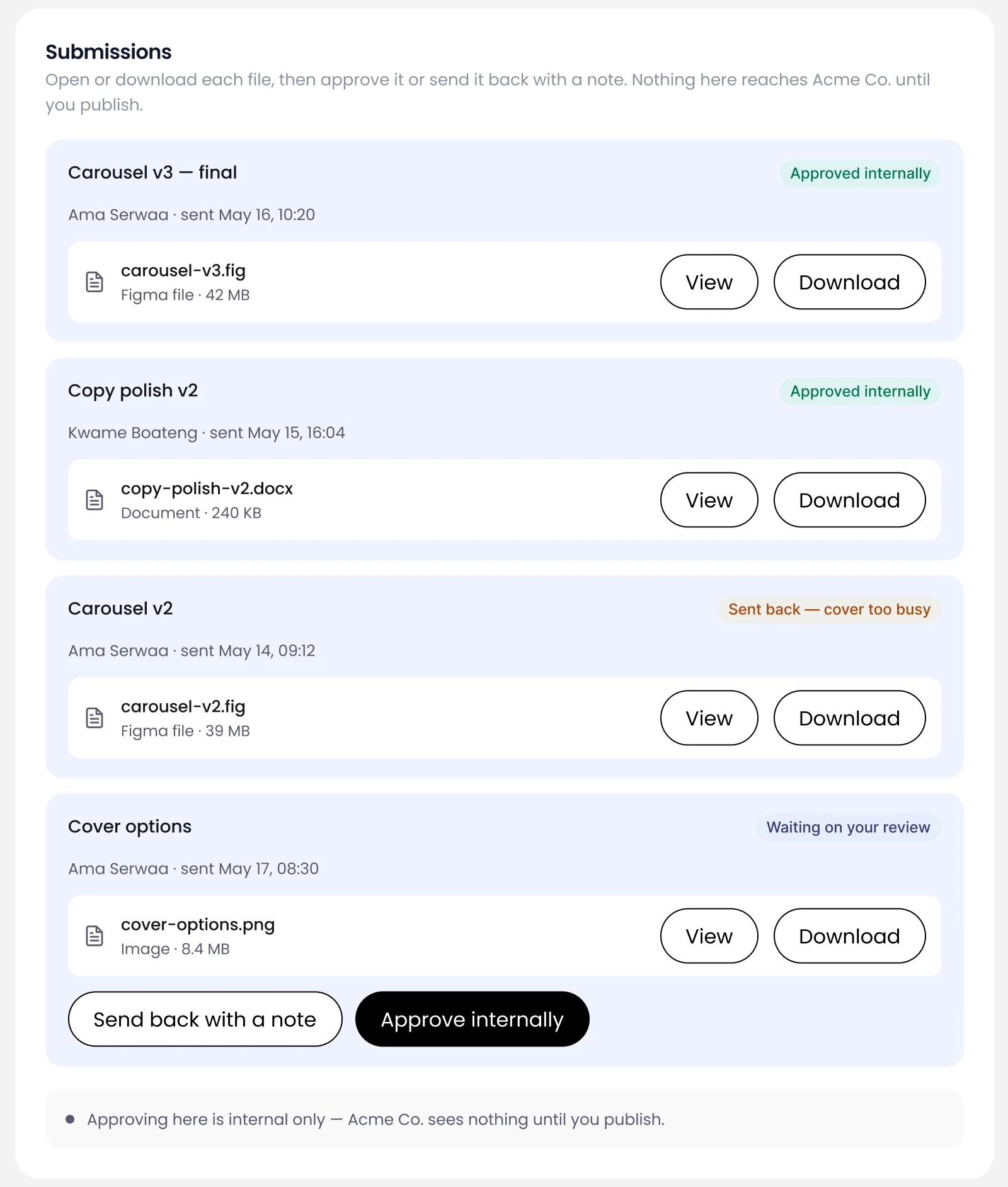
    Internal review
    Close-up: four submissions, two approved internally, one sent back because the cover was too busy, one waiting with Send back with a note and Approve internally.
  3. 03Art director

    Choose what goes out

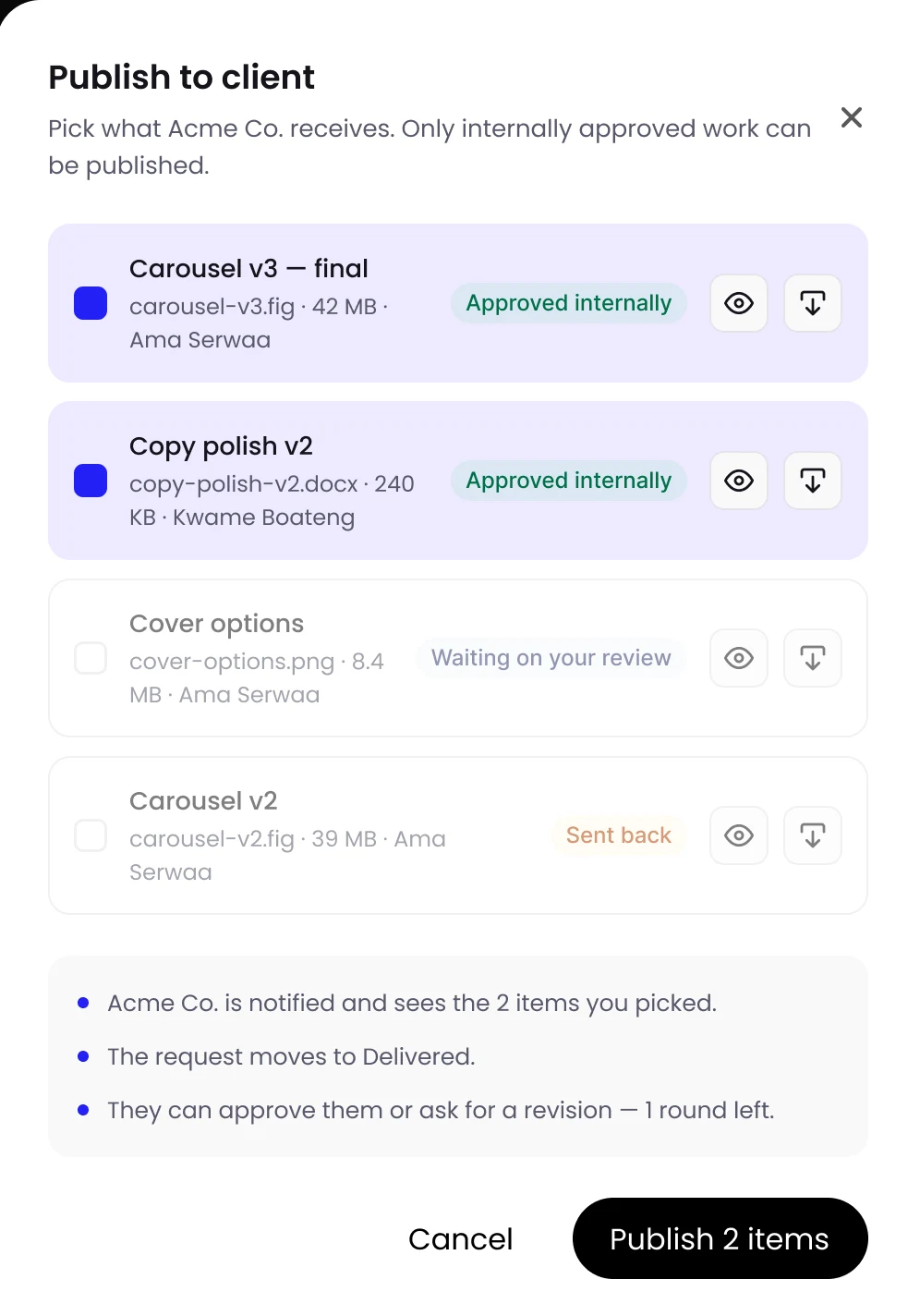
    Only work approved inside the team can be picked. The client is notified and the request moves to Delivered.

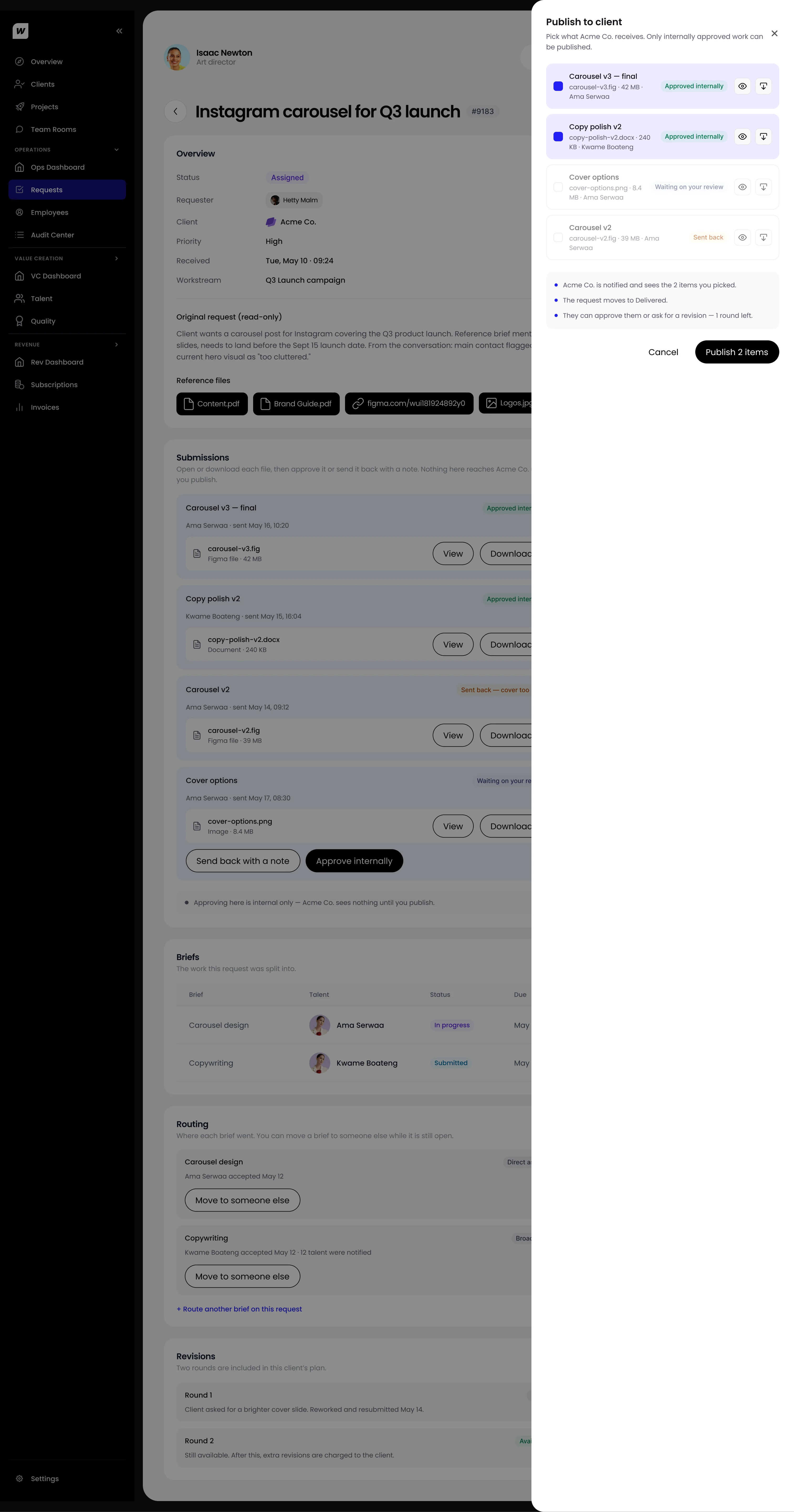
    The Publish to client panel open over the request page.
    Publish to client
    Close-up: Publish to client, with the two internally approved files ticked and Publish 2 items.

Going back in

A file could say Draft. It could never say Approved.

Files reached the client marked Draft, and nothing on the screen could change that. I went back into two screens to put that decision in the client's hands, and kept a before and after of each so the team could see exactly what moved.

  1. 01File preview
    Before
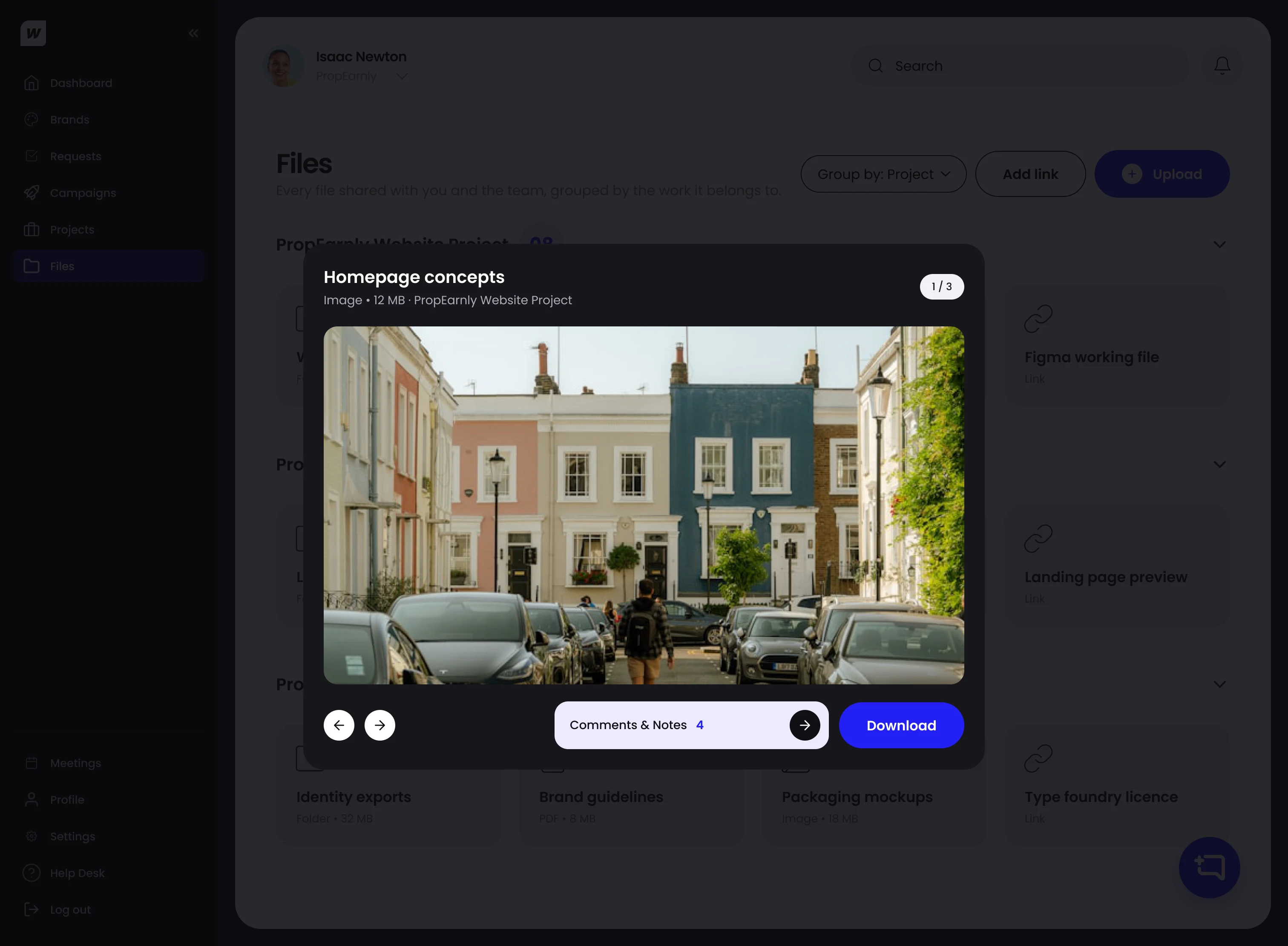
    Download and comments, nothing else. A draft stayed a draft.
    After
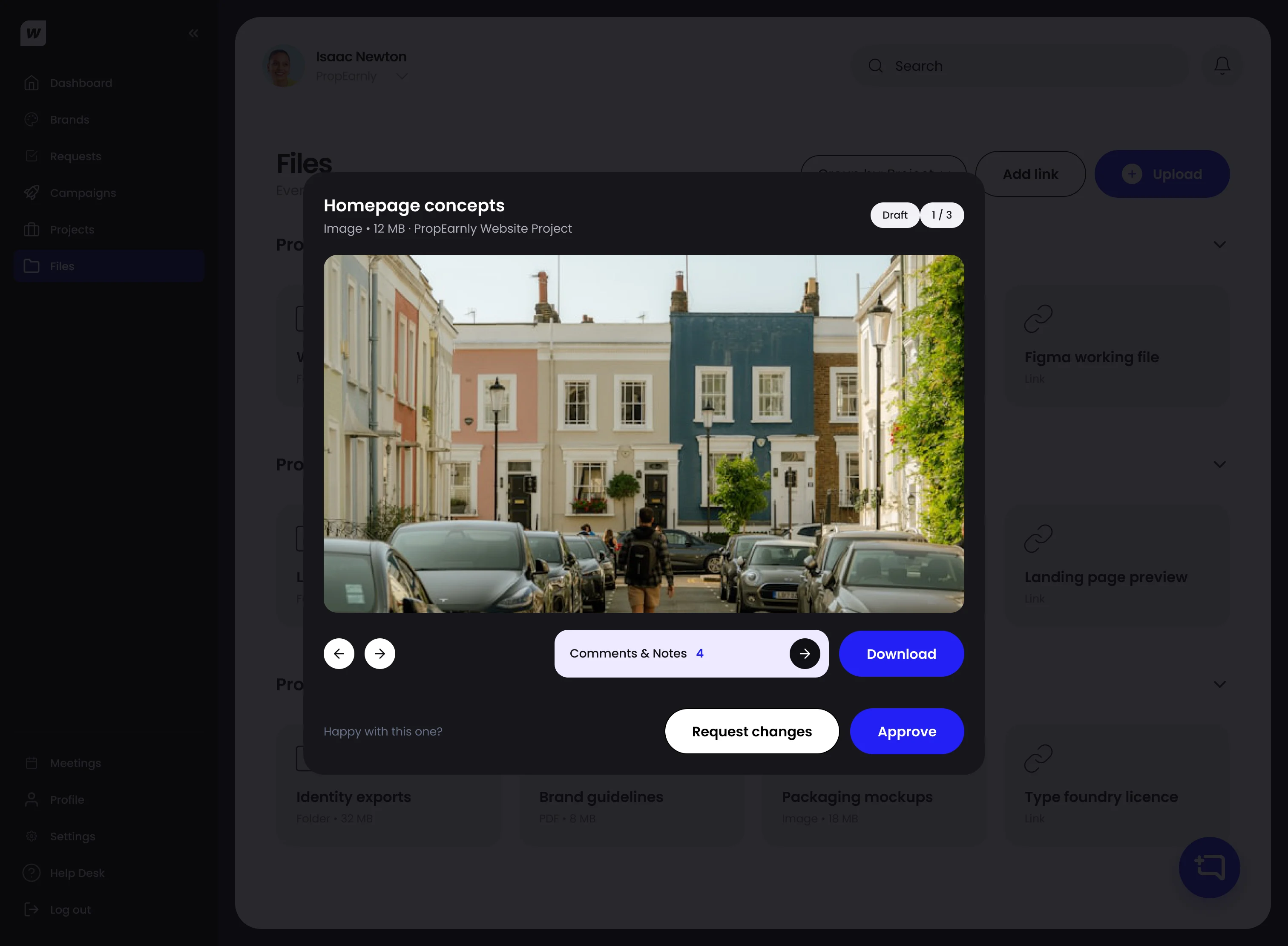
    Approve or Request changes, right under the file. Approve moves it to Approved; Request changes sends a note to the team.
    Before: a file open in preview with Comments & Notes and Download only.After: the same preview with a Draft label and, under the file, Happy with this one? Request changes or Approve.BeforeAfter
  2. 02Files
    Before
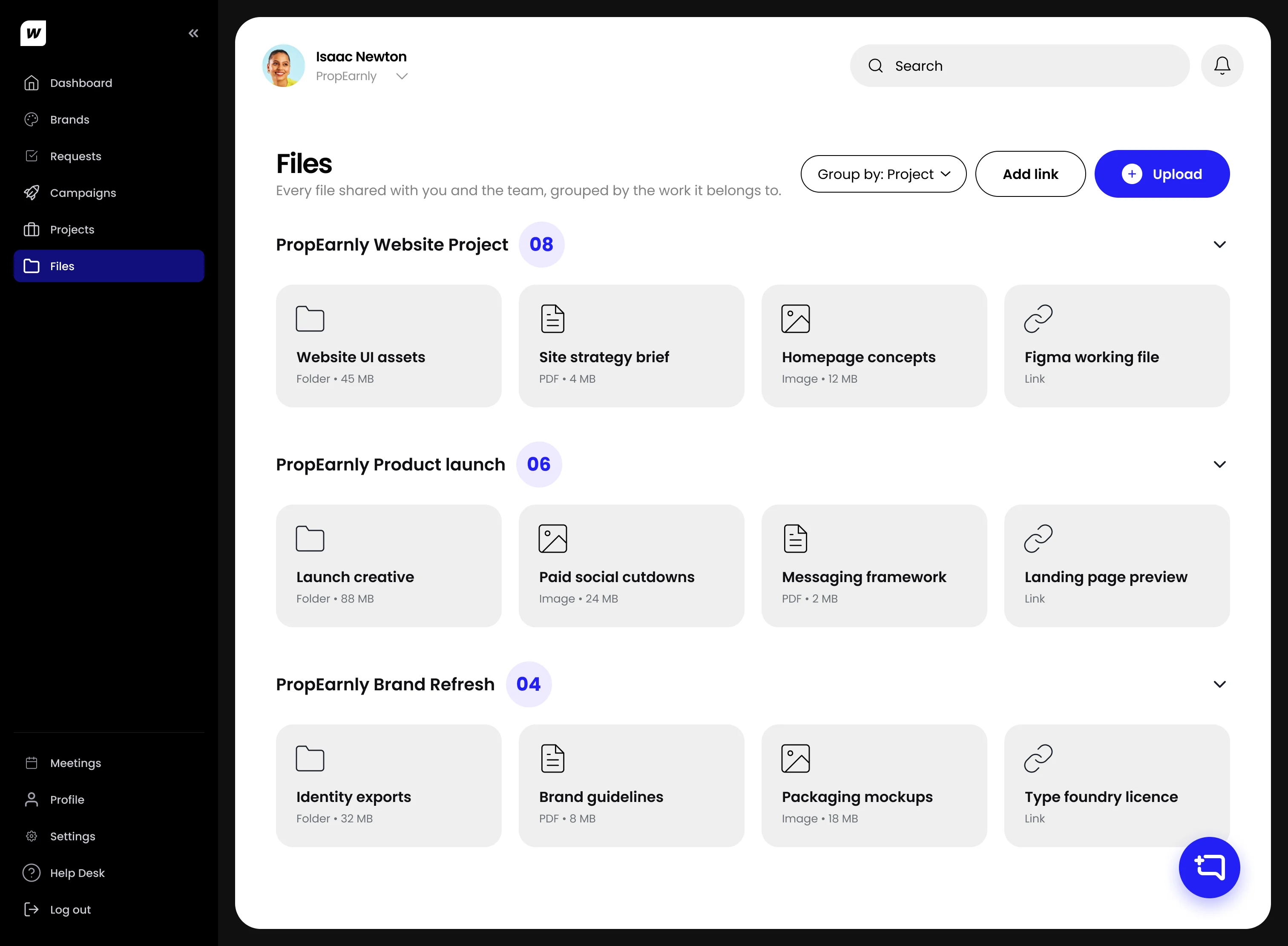
    Files were grouped by project only, so nothing showed which ones were still drafts.
    After
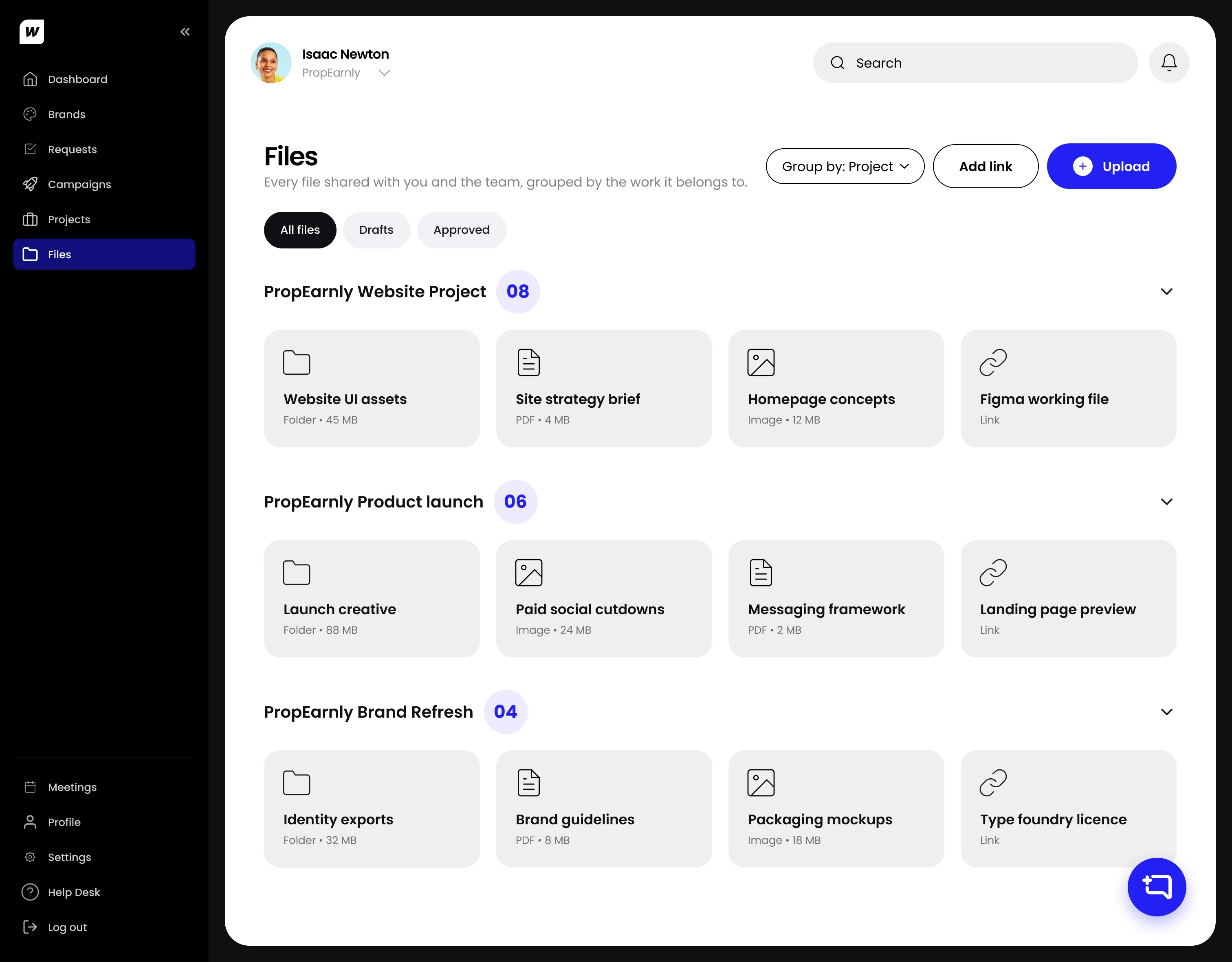
    All files, Drafts and Approved now sit right under the title, on the web and on a phone.
    Before: the Files page, grouped by project, with no way to see drafts.After: the same Files page with All files, Drafts and Approved under the title.BeforeAfter

Two states, nothing in between

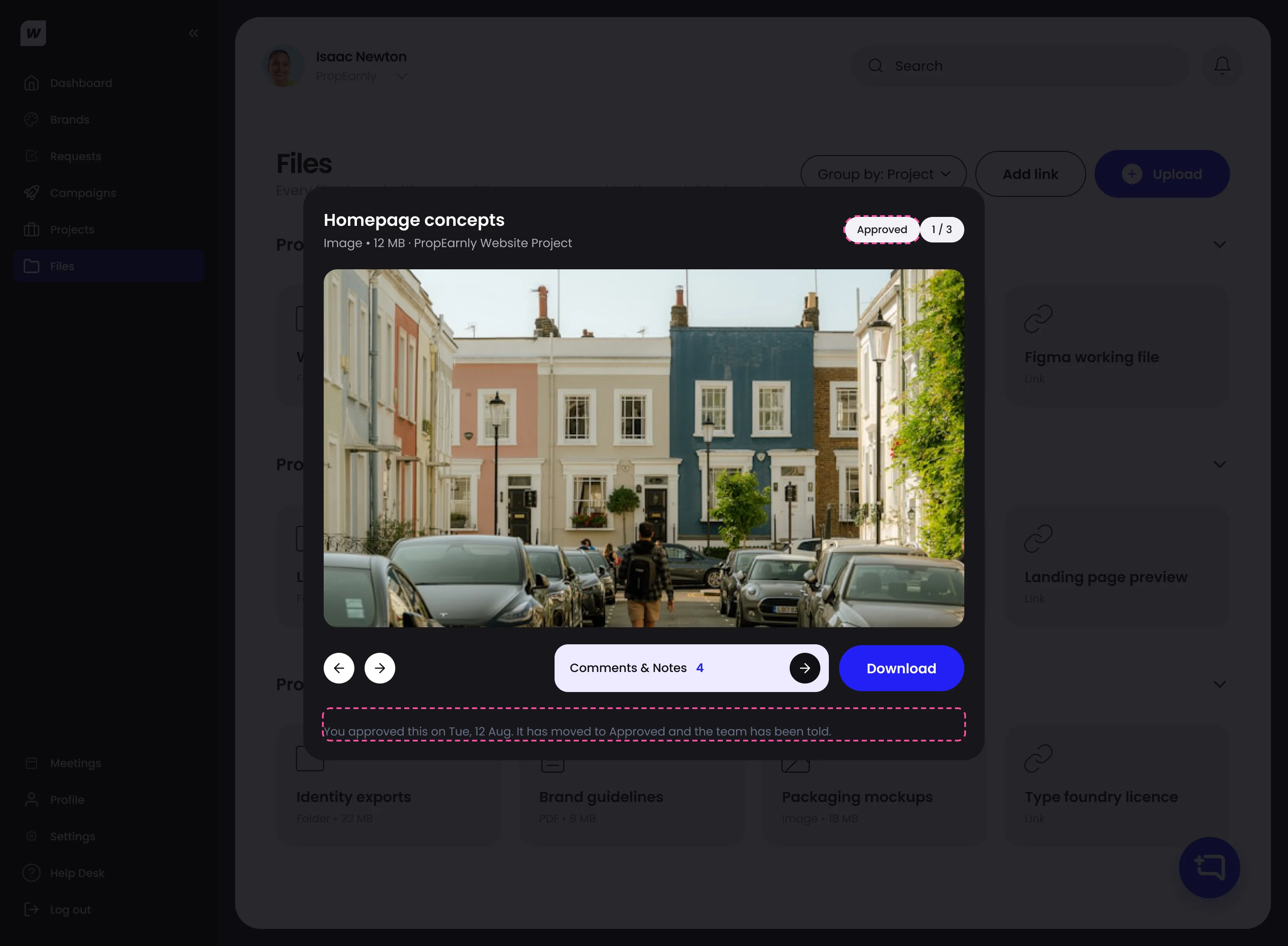
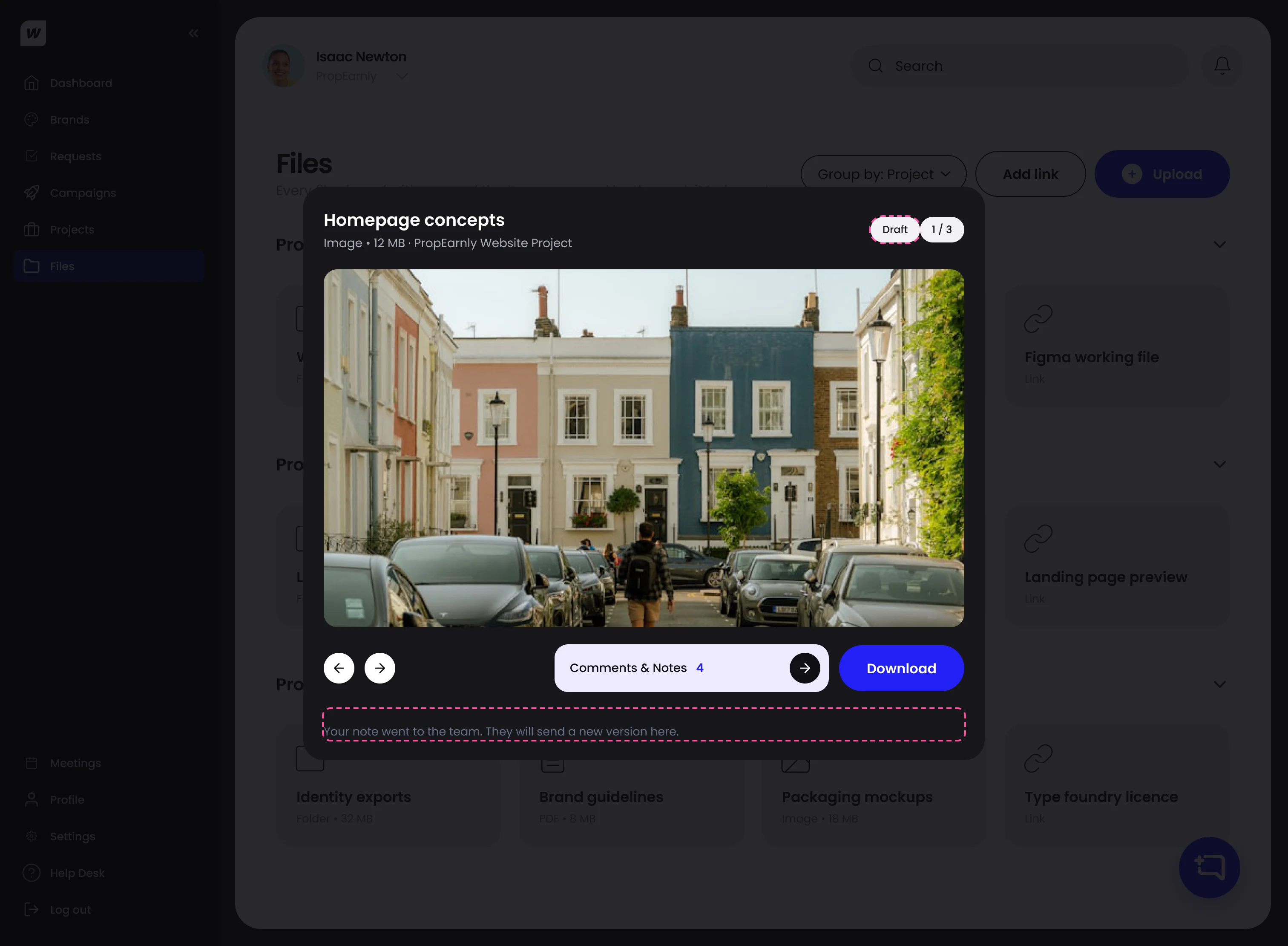
Asking for changes does not create a third state. The file stays a draft until it is approved, and a line under it tells the client what happens next.

The preview after approving: an Approved label and the line You approved this on Tue, 12 Aug. It has moved to Approved and the team has been told.
Approved
The preview after asking for changes: still Draft, with the line Your note went to the team. They will send a new version here.
Changes requested

The system underneath

Every plan has lanes. Each lane runs one request at a time.

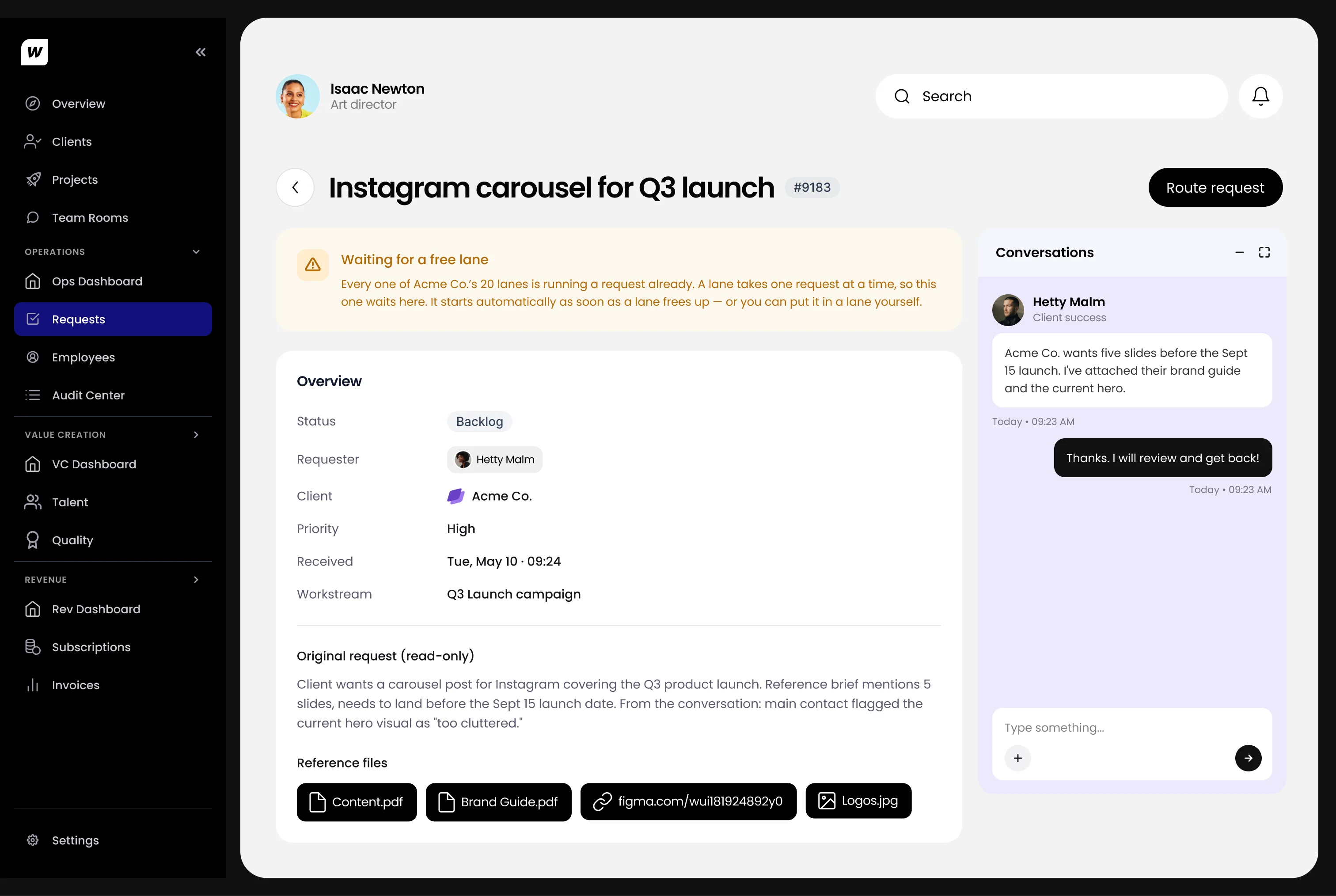
A client's plan comes with a set number of lanes. Each lane works on one request, and anything else waits its turn, then starts by itself when a lane frees up. The rule only works if nobody has to remember it, so I wrote it into the screens: every waiting request says why it waits and what happens next.

  1. 01Received
  2. 02Approved
  3. 03WaitingBacklog or Queued
  4. 04Assigned
  5. 05Delivered
  6. 06Revision requested
  7. 07Complete
A request in Backlog: a banner reads Waiting for a free lane, explaining that all 20 of Acme Co.'s lanes are busy and the request will start by itself.
Backlog · Waiting for a free lane
Backlog

Waiting for a free lane

  1. 1The status reads Backlog, in the same chip as every other state.
  2. 2The banner says why it waits and what happens next, one sentence each.
  3. 3Route request stays live, so operations can still put it in a lane by hand.
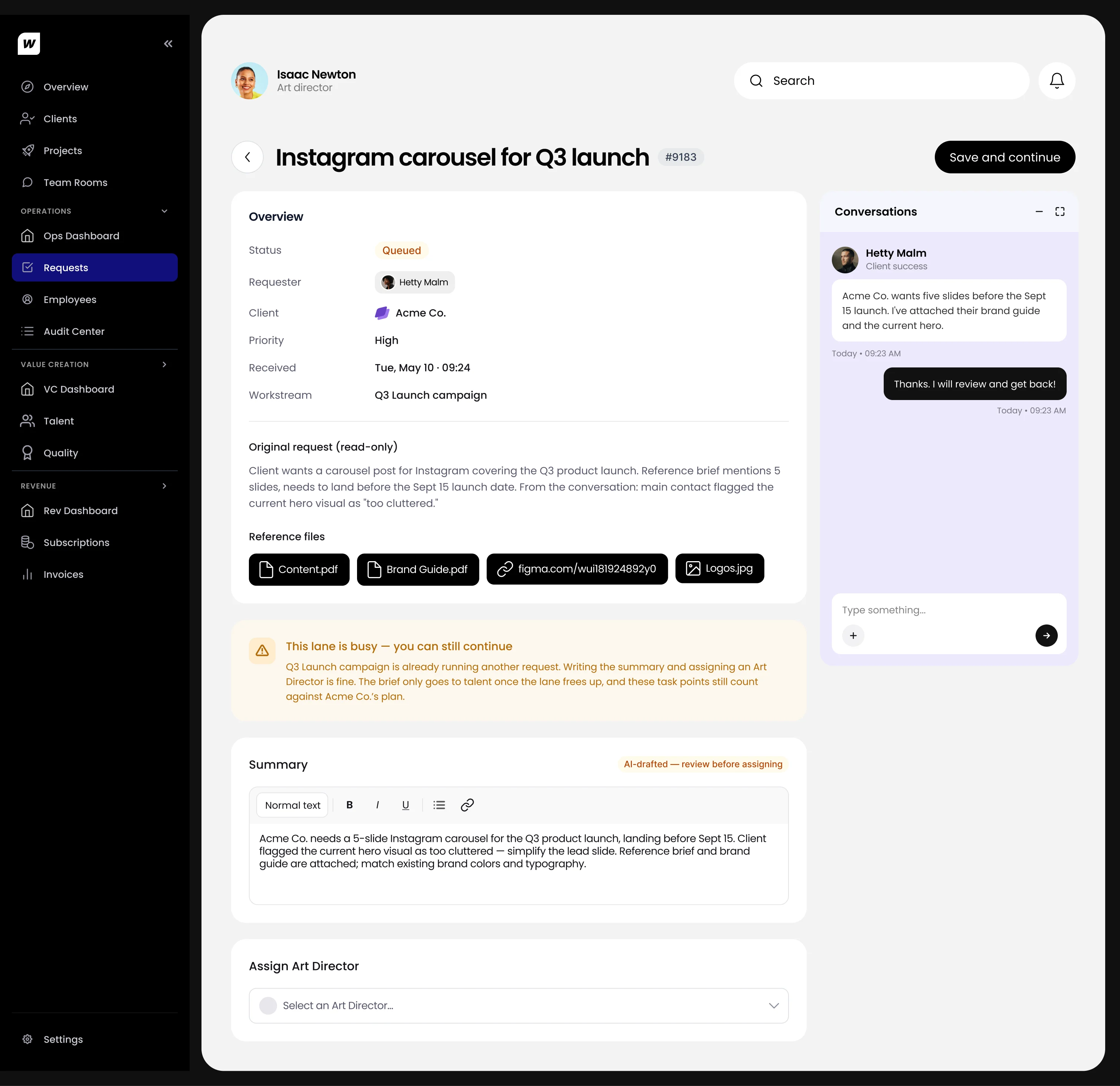
A request marked Queued: a banner reads This lane is busy, you can still continue, above the summary and Assign Art Director.
Queued · This lane is busy, you can still continue
Queued

This lane is busy, you can still continue

  1. 1Queued: the request has a lane, but the lane is busy.
  2. 2The warning blocks nothing. The team keeps working while it waits.
  3. 3Summary and art director can be done now. Only the hand-off to talent waits.

Shipped

Live on the App Store, Google Play and the web.

Workspace Global is in clients' hands today. Everything on this page is the product as people use it, designed end to end by me.

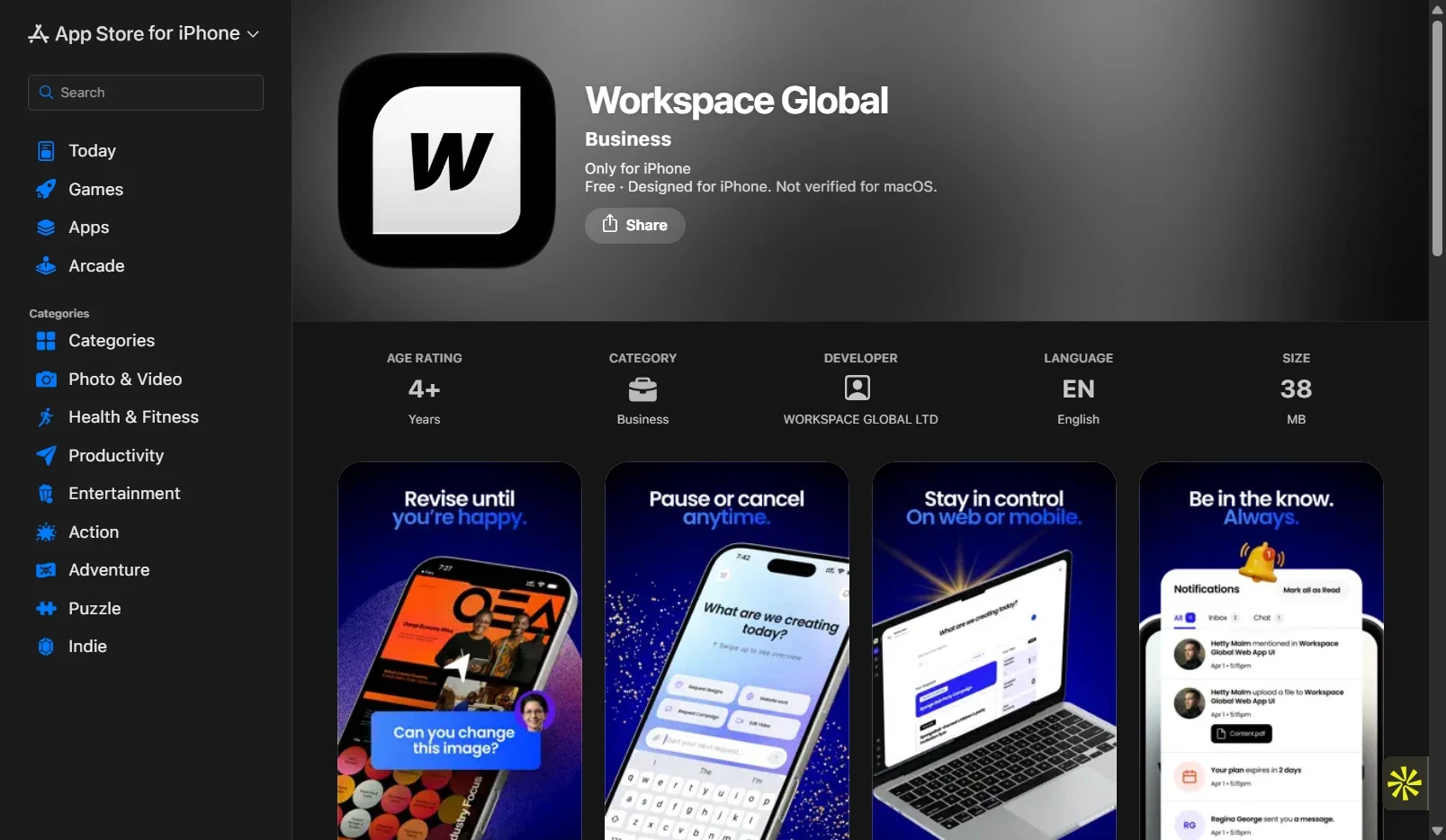
The Workspace Global listing on the App Store for iPhone: Business category, developer Workspace Global Ltd, with screenshots titled Revise until you're happy and Stay in control on web or mobile.
App Store, live
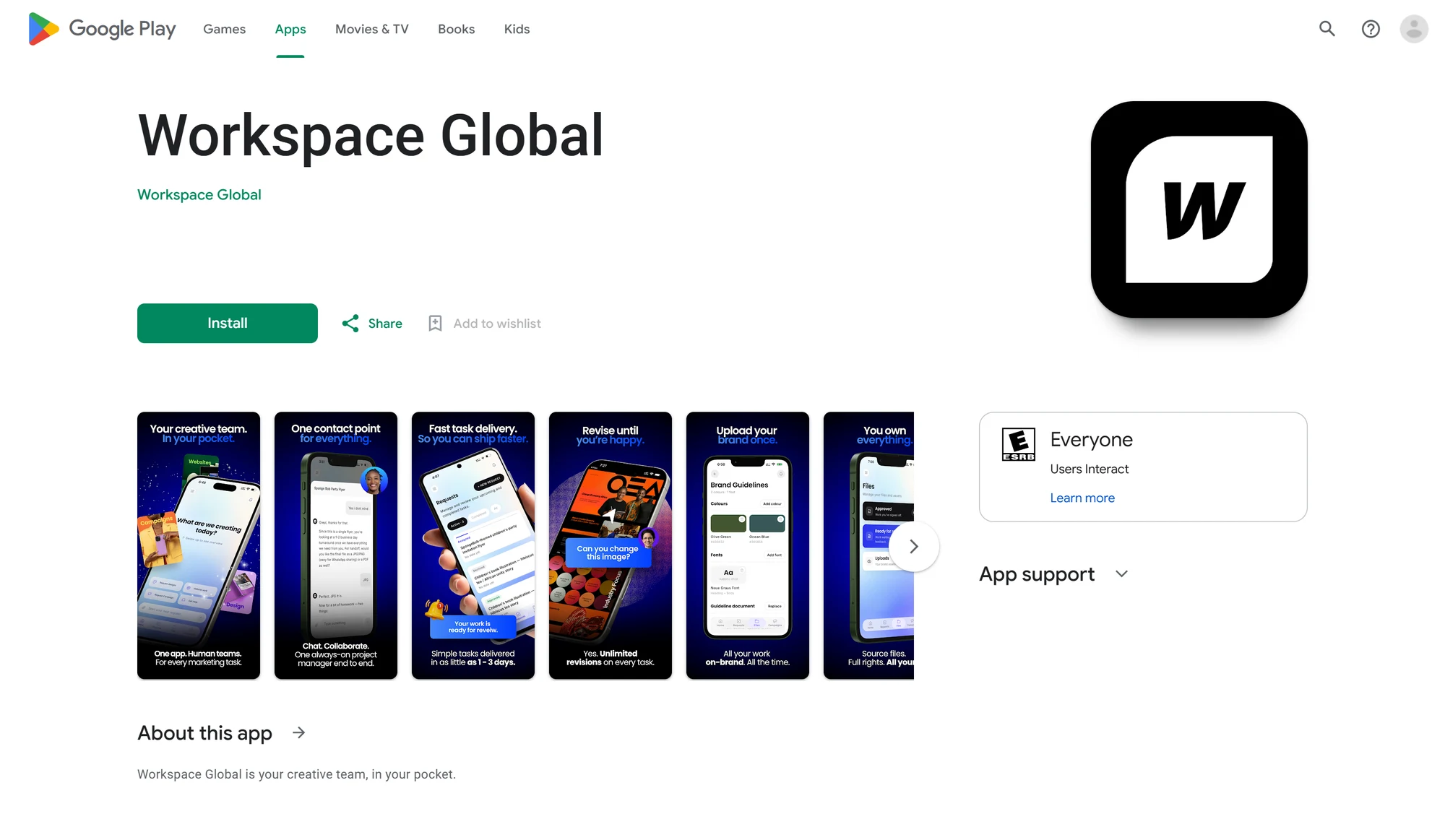
The Workspace Global listing on Google Play, with an Install button and screenshots titled Your creative team, in your pocket and Revise until you're happy.
Google Play, live
The Workspace Global web app: the dashboard asks What are we creating today? with quick picks such as Design my logo and Build my website.
Web app
  1. 01Client app

    Requests, files, brands, campaigns, meetings and billing, on iOS, Android and the web.

  2. 02Internal tools

    The Ops dashboard for operations, value creation and revenue, with the request lifecycle at its centre.

  3. 03Talent portal

    Where designers and writers pick up briefs, send their work and track their points.